Do not even try opening Matlab on a login node!
Just opening Matlab needs ~4GB of RAM. This is way above what you may use on a login node!
Therefore, always use an interactive session when working with Matlab!
Matlab
Matlab is installed locally on all nodes. Currently, the releases R2026a and R2025b are available.
If you are using an Interactive Desktop Session, you are going to find the Matlab entries in the Applications Menu on the top right. It is in the "Others" category.
The most convenient way would be to use a Visual Studio Code Tunnel and then install the official Matlab extension.
You are going to have to tell the extension where it can find the so-called matlabroot. We strongly advise you to do this on a per project basis.
.vscode in the root folder of your project, if it does not exists.settings.json in the .vscode folder.The file should look like this:
{
    "MATLAB.installPath": "/opt/matlab/R2026a"
}
If you want to use another release, just change the last part of the path.
If the file already existed, you might see some more entries between the brackets. In this case make sure not to duplicate the outer brackets but just add the "MATLAB.installPath" entry between the brackets!
When this is done, VSCode tries to start and connect to Matlab as soon as you open a .m file. You can run and debug your scripts just as normal.
You can also open a Matlab Terminal. Try clicking the "Plus" sign and choose MATLAB if you already have a terminal open. If not, Click Terminal -> New Terminal in the menu.
If you are connected from Linux or Mac (or have managed to get X11 forwarding to work in Windows), you can get a desktop Window of the Matlab session by typing desktop in the Matlab Terminal.
Of course, you can also access Matlab from a terminal session.
Symlinks have been created to /usr/local/bin So you can start the matlab release of your choice with:
matlab-r2026a
and so on.
Again, do not even try this from a login node!
Parallel Server, the native solution to work with HPC Clusters like the SCC is installed. You essentially use the Parallel Computing Toolbox to parallelize code using parfor or you use it to submit batch jobs.
Before you can use the Parallel Server, you need to "discover" the cluster. You can do this from the command line (for instance when using Matlab via a VSCode Tunnel Session) or in the Desktop application.
First, open up Matlab in an Interactive Desktop Session. Make sure, you are in the HOME tab and wait for the Parallel item to appear in the ENVIRONMENT section.
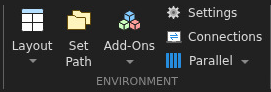
Click it and choose Create and Manage Clusters....
Find and click the button called Discover Clusters in the window that has just opened up
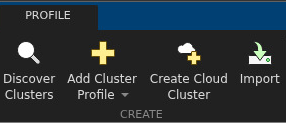
Click Next in the new window.
After a while an entry with the Cluster Name SCC is going to show up in the table. Note that the Host entry might be different from the image here:
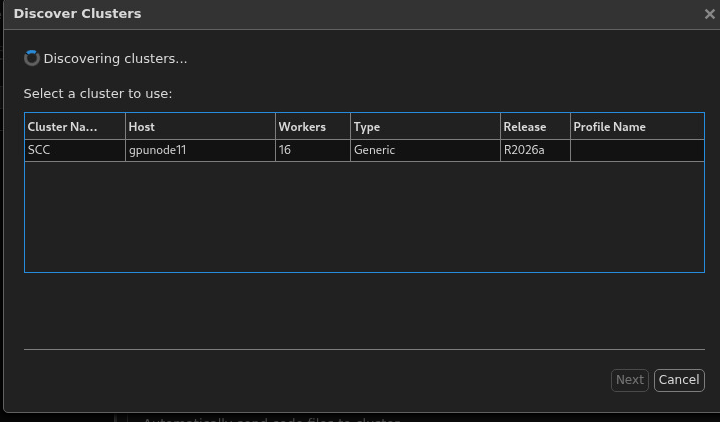
Click on the SCC entry, click Next and Finish in the next window.
You should now see the SCC Cluster Profile as the default in the Cluster Profile Manager Window.
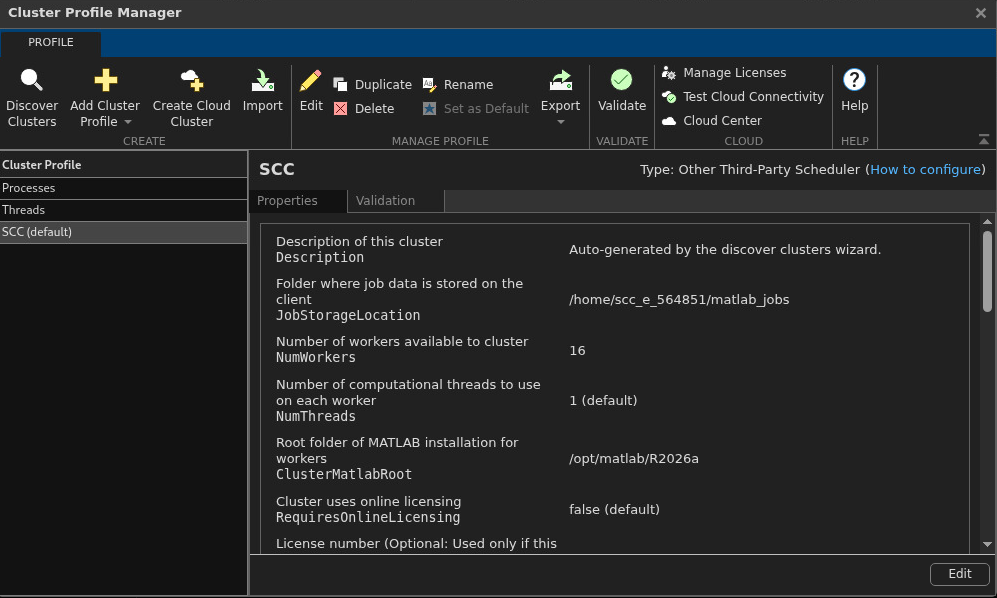
If you want, you can click on the Validation tab to allow Matlab to run some tests on the cluster connection. Be aware that this might take a couple of minutes per step, especially if the cluster is busy!
On the command line, you can achive the same thing by entering the following commands in the Matlab Command prompt:
parallel.importProfile(fullfile(matlabroot, '/toolbox/parallel/user/clusterprofiles/scc_cluster.conf'));
parallel.defaultProfile('SCC');
Validate it with:
parallel.validateProfile('SCC');